 Wefill
How Wefill works
A shopping list you share with your home, friends or a trip. Everyone sees what is needed, live. These are real screens of the app.
1. Make a board
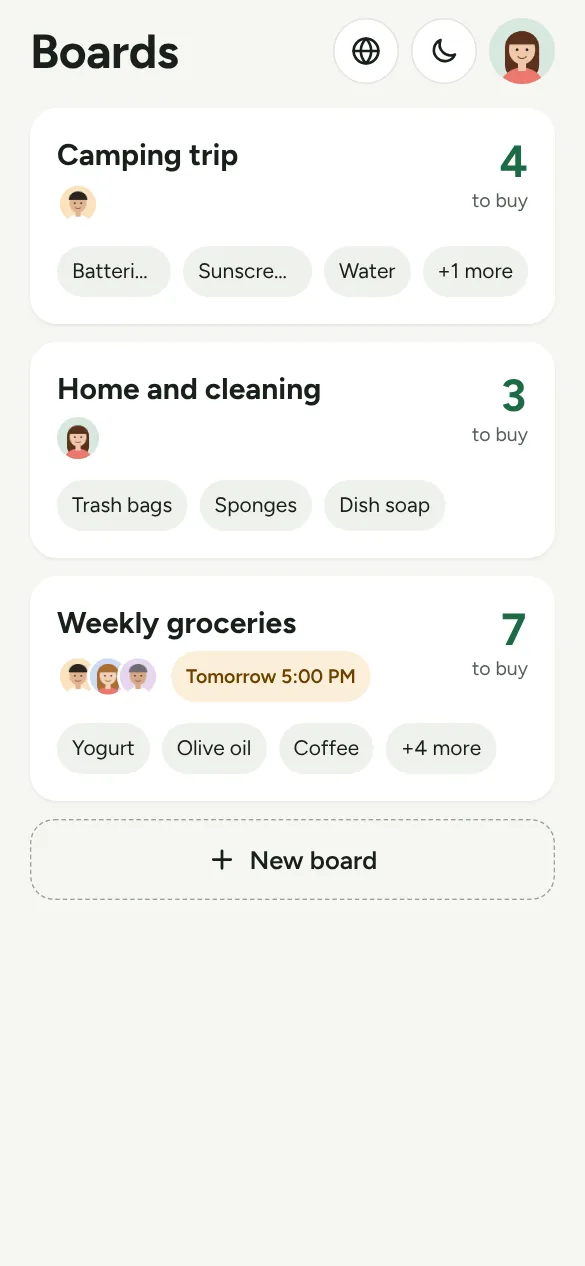
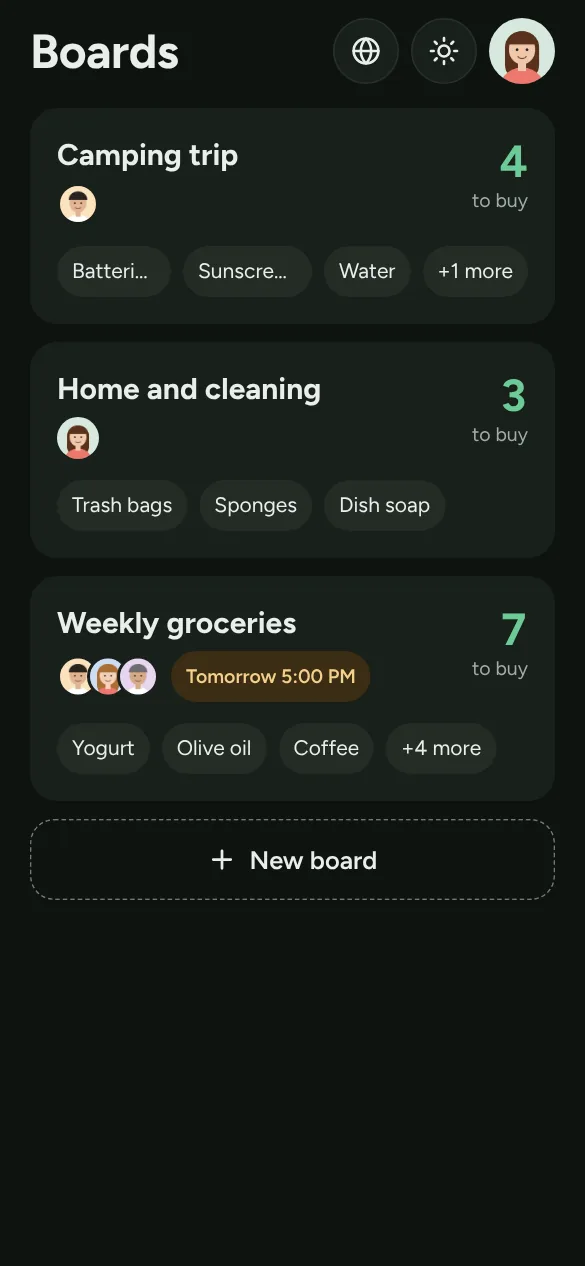
A board is one shopping list, like the weekly groceries or a camping trip. Tap New board and start empty or from a ready list. Each board shows how many items are left to buy and the people you share it with.
The round buttons at the top change the language, switch between light and dark, and open your account.
2. Add items and shop
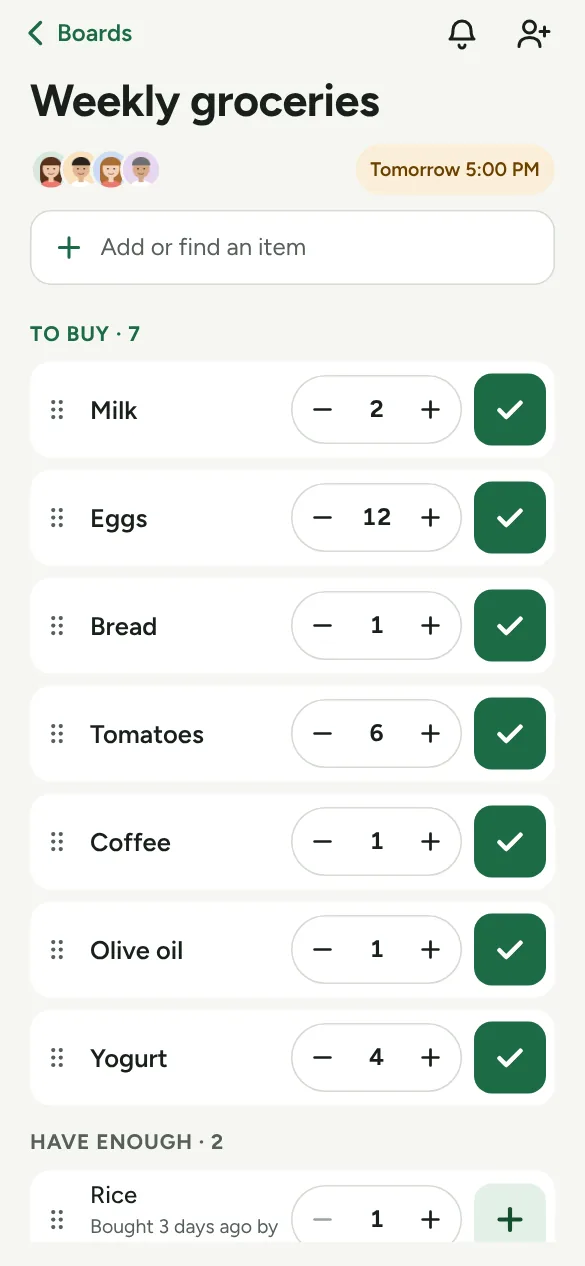
Tap Add or find an item. Adding something that is already on the list raises its amount instead of adding it twice.
In the shop, tap the green tick beside an item. Everyone sees it at once, and Undo fixes a wrong tap. Minus and plus change how many you need.
Items you have enough of wait under Have enough. When they run low, pick how many with minus and plus, then tap the green + to put them back on the list.
To put the list in your own order, hold the six dots at the start of a row and drag it. Everyone on the board sees the same order, and items keep their place when they are bought and needed again.
While a board is open, the screen stays on, so your phone does not lock in the middle of the shop.
3. Save good buys
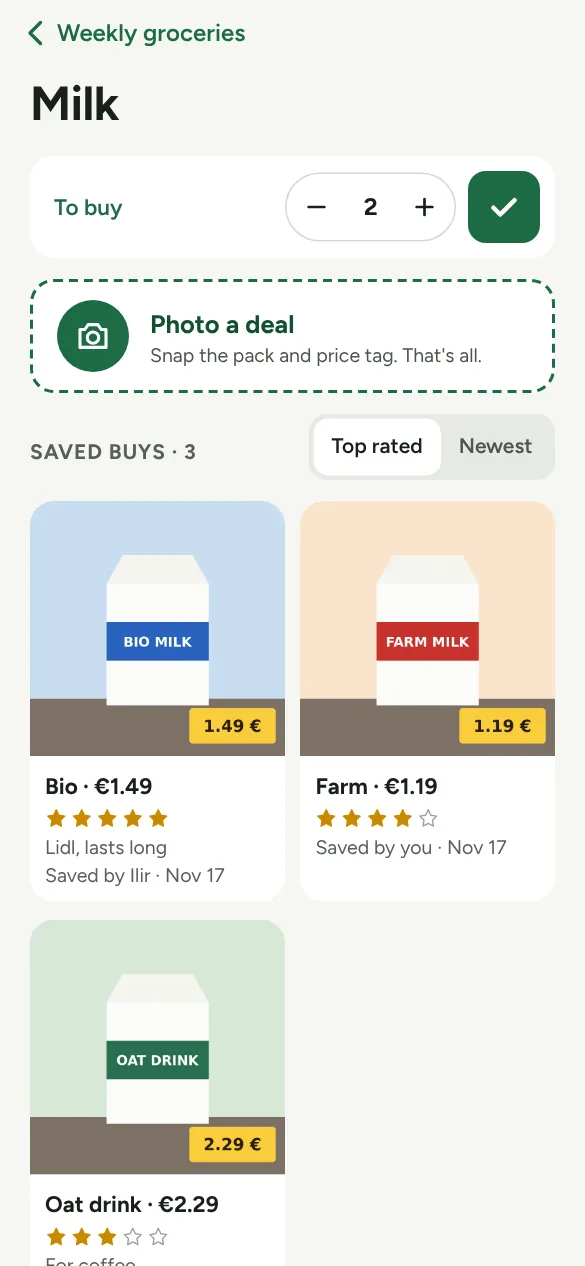
Tap an item's name, then Photo a deal. Snap the pack and the price tag and tap Save. Stars, brand, price and a note are optional, and their boxes are right there to fill in.
Saved buys show as large photos, best rated or newest first, so everyone on the board can find the good one again.
4. Share a board
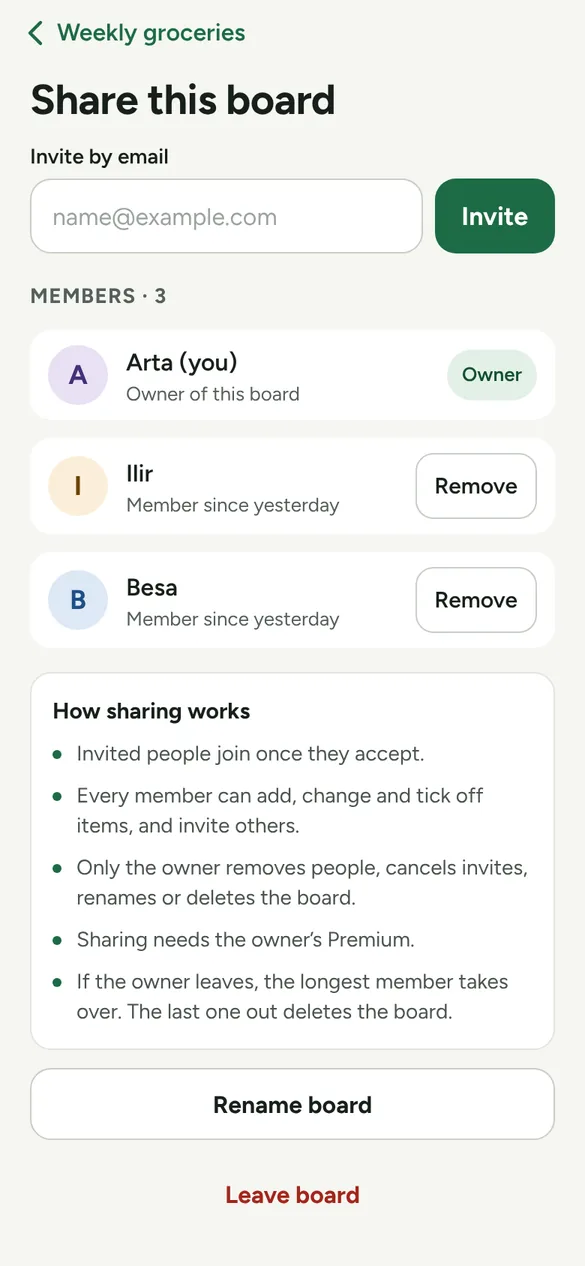
Open the board and tap the person icon at the top. Type an email and tap Invite. People on the app get it in the app; anyone else gets an email from us.
Invited people join once they accept. Every member can add, change and tick off items, and invite others. Only the owner removes people, renames or deletes the board. Sharing your own boards needs Premium.
5. Set a reminder
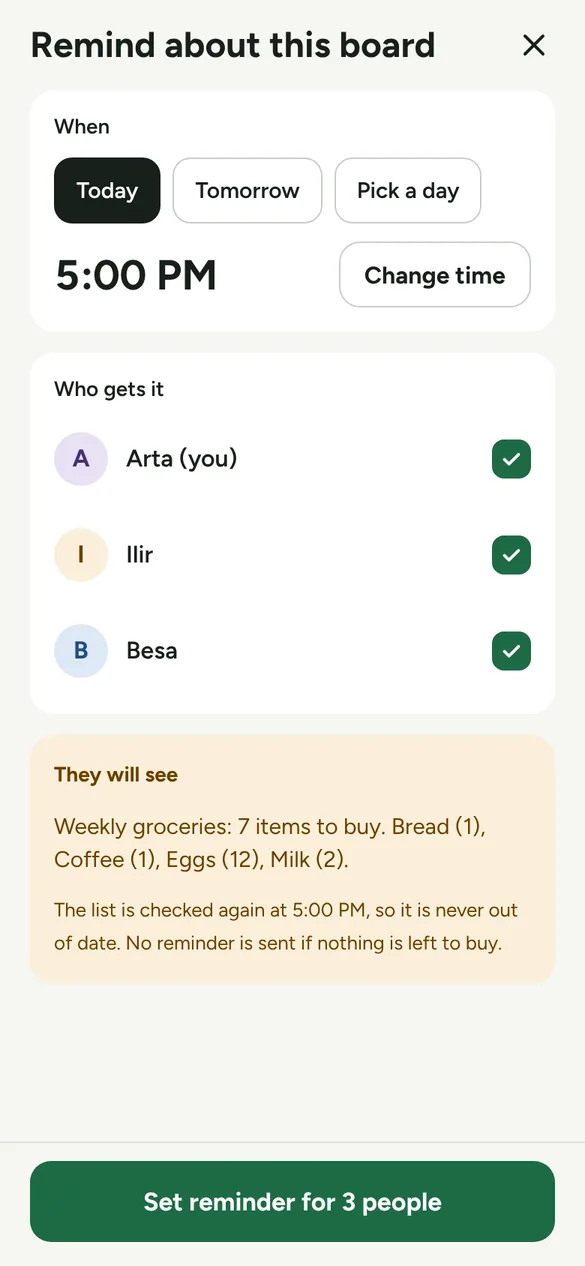
Tap the bell on a board, pick the day and time, and who gets it (everyone is ticked at first). At that time the list is checked again, and nothing is sent if nothing is left to buy.
Dark mode and languages
The app follows your phone's light or dark setting. Tap the moon or sun at the top of your boards to switch, and the app remembers it.
The globe picks the language: English, Shqip, Deutsch, Français, Nederlands, Español, Svenska, Türkçe, العربية, 简体中文 or 日本語. "Phone language" follows your phone again.
Use it from Claude, ChatGPT or Gemini
Connect your AI assistant once, then just ask: "Add butter to my list", or "Plan a lasagne dinner for 6 and put what I need on my list". The items appear on your board, live, for everyone on it. You can also ask what is on a list, or tell it what you bought.
The address to connect is https://wefill.app/mcp. Sign in with the email of your Wefill account: we email you a 6-digit code.
- Claude (all plans, also the free one): Customize, Connectors, +, Add custom connector, paste the address.
- ChatGPT (paid plans, on the website): turn on Developer mode in Settings, add a new app, paste the address.
- Gemini (on gemini.google.com, where Google offers custom apps): Settings, Connected Apps, Add a custom app, paste the address.
If you name no board, items go to the board you changed most recently. Say the board's name to pick another, for example "add milk to Home".
Questions
Is it free?
Yes. Sharing your own boards needs Premium: free for the first 3 months, then one payment. Joining someone else's board is always free.
Does it work without signal in the shop?
Yes. Your boards are saved on the phone, and changes are sent as soon as the signal is back.
Who sees my deal photos?
Only the people on that board. The person who saved a photo can delete it.
What happens when my free trial ends?
Nothing is deleted and nobody is removed. Boards you shared become read only for the others until you get Premium. We remind you 7 days before.
Why does the screen stay on?
So your phone does not lock while you shop. It stays on only while a board's list is open, and sleeps as usual everywhere else.
Can I change the order of the items?
Yes. Hold the six dots at the start of a row and drag it up or down. The order is saved for everyone on the board. Screen readers offer "Move up" and "Move down" instead.
How do I leave a board?
Open the board, tap the person icon at the top, then Leave board. If you are the owner, the longest member takes over. The last one out deletes the board.
How do I delete my account?
Tap your photo at the top of your boards, then Delete account. Or see how to delete it without the app.
Is there an iPhone version?
Not yet. It is on Android now, in a free test on Google Play.
Anything else? Write to hello@wefill.app.